


A mortgage calculator answers the question your visitors actually came with: what would this home cost each month? Without one, they leave your page to do the math on a bank’s website.
It’s also a natural lead magnet for real estate agents, brokers, and lenders. Ask for a name and email address along with the loan details, and every calculation becomes a contact you can follow up with.
In this article, we’ll show you three ways to add a mortgage calculator in WordPress: a free embed with no plugin, a free plugin that runs directly in WordPress, and a form builder that captures a lead with each calculation.
Which Method Should You Use?
| Pick | Best For | Pricing |
|---|---|---|
| mortgagecalculator.org embed | A quick calculator with no plugin | Free |
| Responsive Mortgage Calculator | A calculator that works directly in WordPress and supports your own currency | Free |
| WPForms | Capturing a lead with each calculation | Pro plan and up |
Method 1: Embed a Free Mortgage Calculator (No Plugin)
The easiest way to create a mortgage calculator is with the free embeddable calculator from mortgagecalculator.org. On the page, you can set default values for the home price, interest rate, loan term, property tax, PMI, and homeowners insurance.
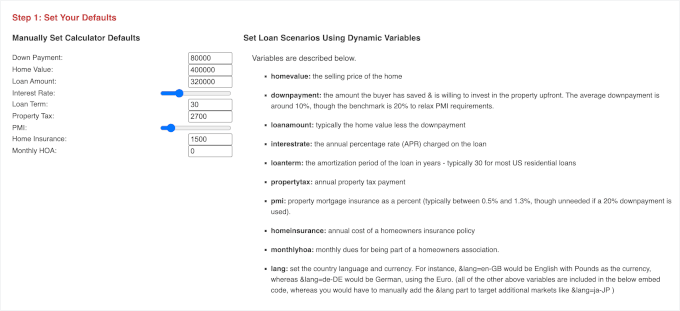
The tool updates the embed code as you change these settings. If you serve visitors outside the US, you can also add a language parameter to the code. For example, &lang=en-GB uses UK settings, while &lang=de-DE uses German settings.
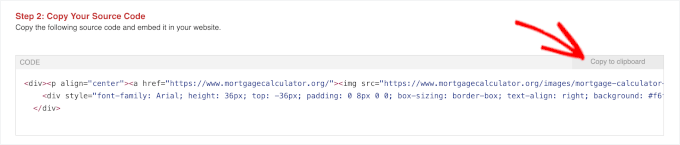
Once you’re happy with the settings, copy the generated code.
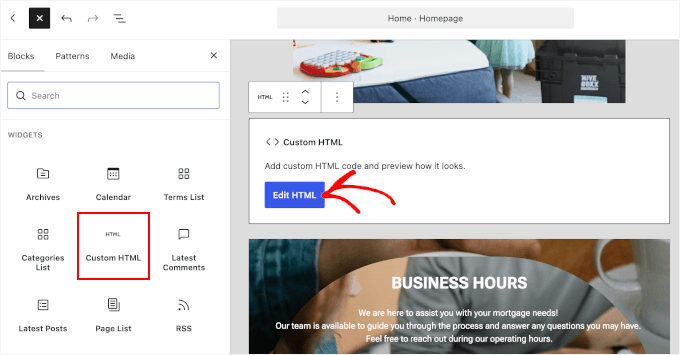
Next, open a post or page in WordPress and add a Custom HTML block. Click ‘Edit HTML’ to add the generated code.
In the popup that appears, paste the mortgage calculator embed code. You’ll then see a preview on the right. If everything looks right, click ‘Update’ to keep your changes.
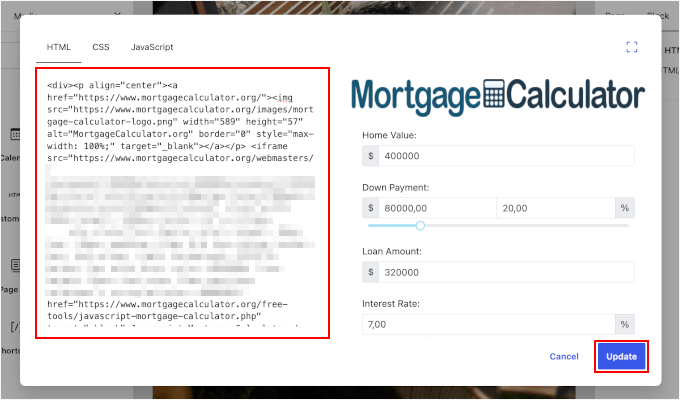
Finally, click the ‘Save’ or ‘Update’ button to publish your changes.
Here’s what the calculator looks like on the front end:
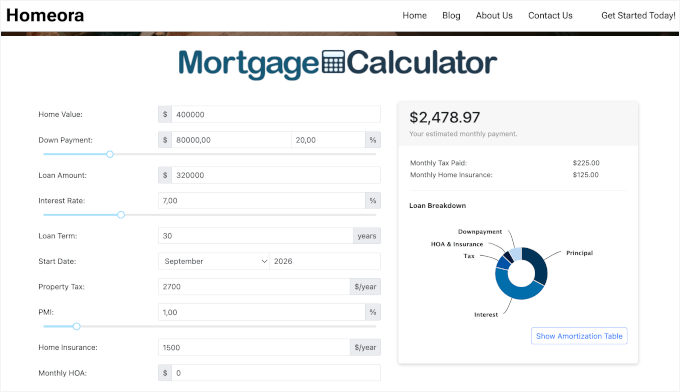
Keep in mind that the calculator is hosted on a third-party server, so you can’t restyle it to match your site. It also doesn’t support lead capture.
If you want to display the calculator site-wide, such as in a sidebar or footer, you can use WPCode to insert it.
Method 2: Add a Simple, Responsive Mortgage Calculator
If you want the calculator to live natively in WordPress rather than in an iframe, Responsive Mortgage Calculator is a solid free pick. It has 7,000+ active installs and is actively maintained.
First, let’s install and activate the plugin. Go to Plugins » Add Plugin in your WordPress admin and click ‘Install Now’ in the Responsive Mortgage Calculator plugin box.
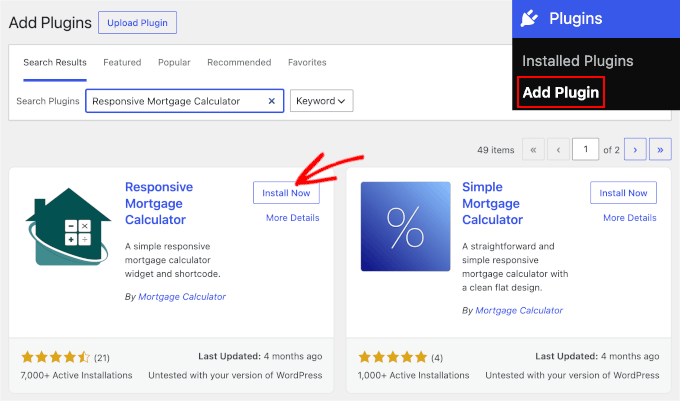
If you need help, see our guide on how to install a WordPress plugin.
After you install the plugin, go to Settings » Resp Mortgage Calculator to set your currency, compounding period (how often interest is added to the loan balance), and default interest rate.
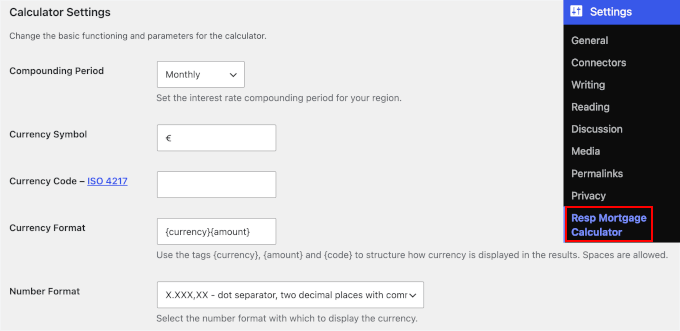
Click ‘Save Changes’ to keep your settings.
After that, you can add the calculator to any page or post using the [mortgagecalculator] shortcode, or drag it into a widget area.
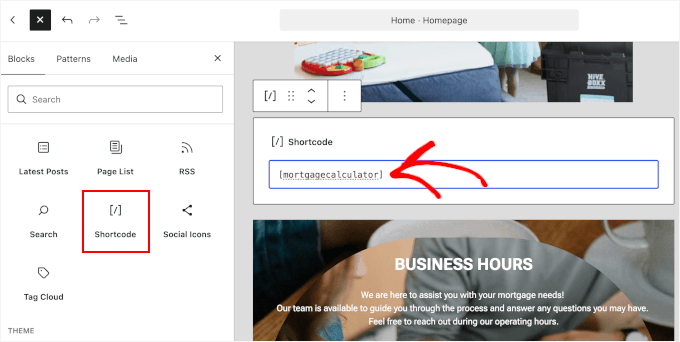
Don’t worry if you can’t see a preview. The shortcode will still work, so you can go ahead and click ‘Save’ or ‘Update’ to make it live.
Now, you can visit your website to see it in action:
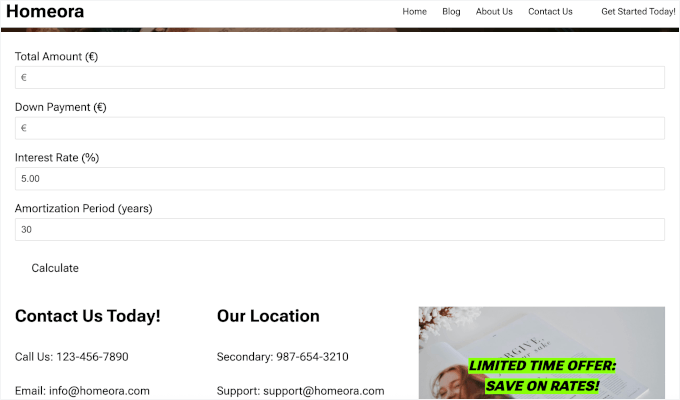
Also, there are a few limitations to keep in mind. You can only have one calculator per page, the styling options are basic, and there are no fields for property tax or insurance. It also doesn’t capture leads.
Method 3: Build a Lead-Capturing Mortgage Calculator
If you want to capture leads while visitors use your calculator, WPForms is the best choice. It lets you collect a name and email address along with their calculation. You’ll need the Pro plan or higher, which includes the Calculations addon these templates use.
At WPBeginner, we use WPForms for our own forms and recommend it. You can learn more in our full WPForms review.
Create the Form From a Template
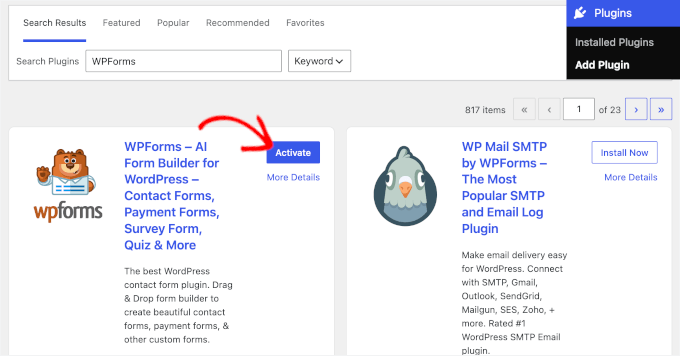
First, let’s install and activate WPForms and enter your license key. If you need help, see our guide on how to install a WordPress plugin.
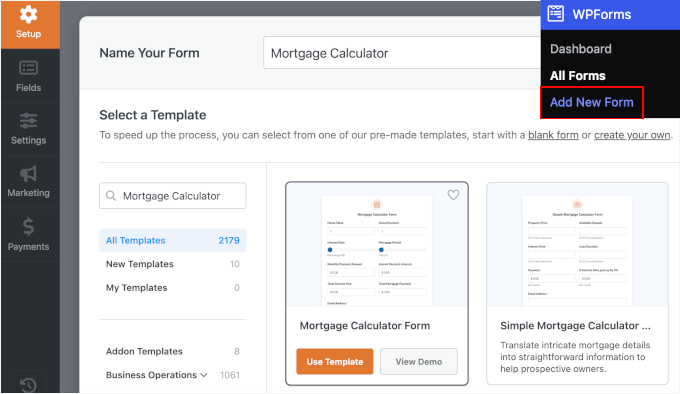
Next, go to WPForms » Add New Form and name your mortgage calculator. WPForms have a few mortgage calculator templates:
- Simple Mortgage Calculator, which is best if you just want a quick monthly payment estimate.
- Mortgage Calculator, which also shows the total interest paid and annual payment amount.
- Mortgage Lead Generator, which comes with name and email fields already in place. If you pick it, you can skip the lead capture step below.
If you’d rather use another template, then click a template then click ‘Use Template.’
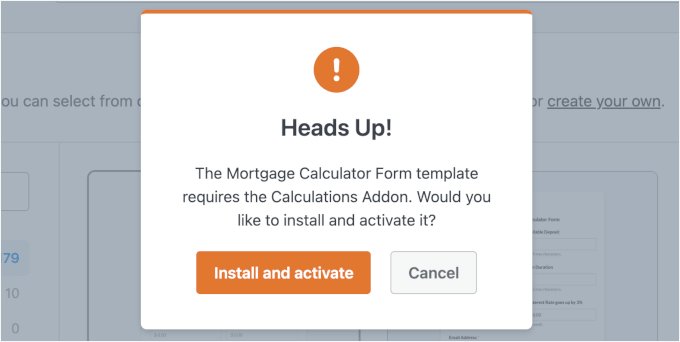
A popup will prompt you to install and activate the Calculations addon. Click ‘Install and activate.’
WPForms will then take you to the drag-and-drop editor. You can see all the customization options on the left panel and a preview on the right.
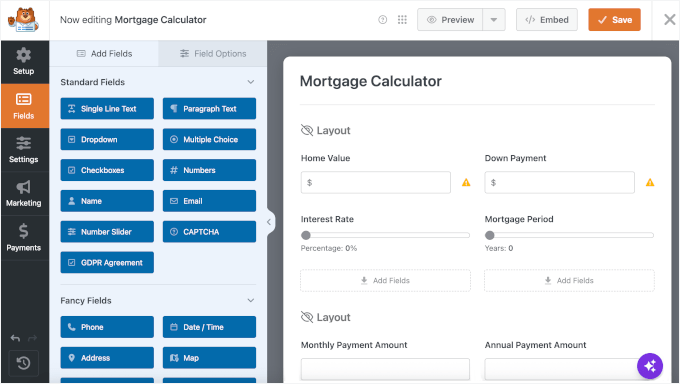
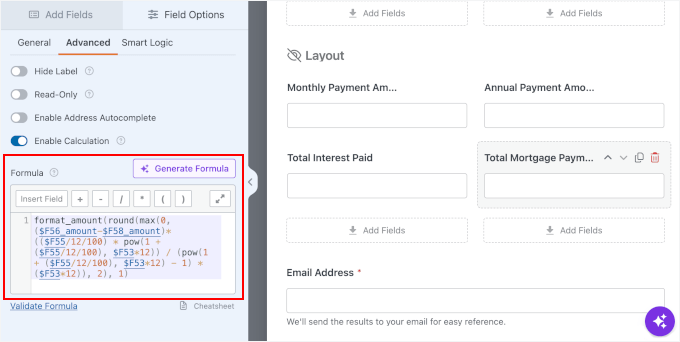
This template comes with the calculator fields and formula already set up. You can find the formula by clicking the ‘Monthly Payment’ field and checking under Field Options » Advanced » Formula.
You can leave it as it is if you just want a monthly payment estimate.
Neither template includes property tax or PMI (private mortgage insurance) fields, though. If you want to add them, you’ll first need to add fields for those values to your form.
If you’d rather not build these yourself, Formidable Forms’ Advanced Mortgage Calculator template comes with tax and insurance fields built in.
You can use the Numbers field, which only accepts numeric input, so the formula won’t break if someone types text. Simply drag and drop it from the Add Fields panel to the preview panel. Then, change the Label in the ‘Field Options’ tab.
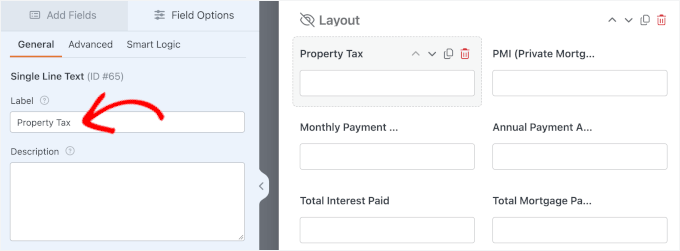
Repeat this step for all the additional fields you need.
Once you’ve added the fields, click the ‘Monthly Payment’ field to set up the new formula. Then, click ‘Generate Formula’ next to the Formula box and describe how you want them included in the calculation.
For example: “Add annual property tax and PMI to the monthly mortgage payment. Divide the annual property tax by 12. Calculate monthly PMI by multiplying the loan amount by the PMI rate and dividing by 12.”
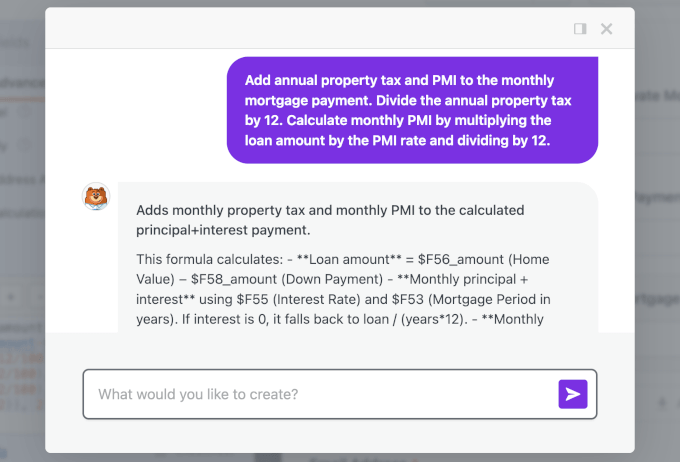
Once the AI has generated the formula for you, click ‘Insert Formula.’
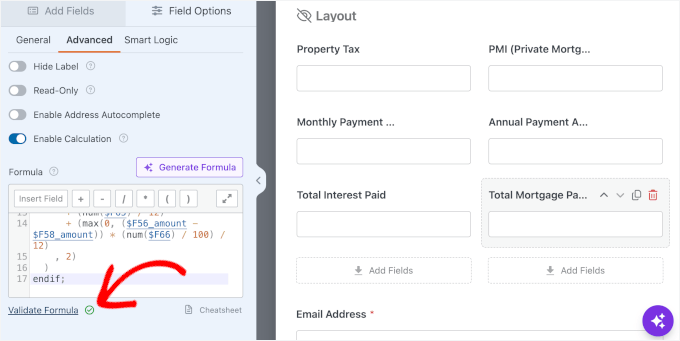
Then, click the ‘Validate Formula’ link in the editor to make sure everything works well.
Add Lead Capture and Notifications
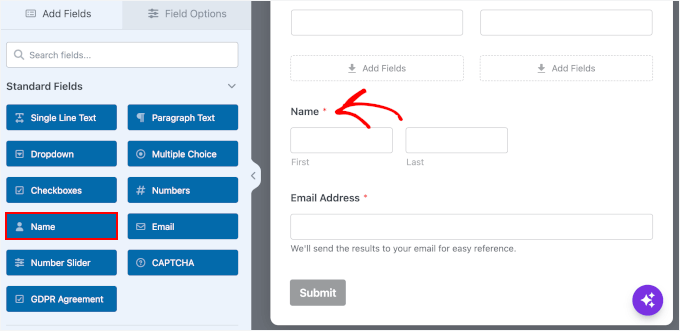
Both templates already include an Email field. To capture the lead, drag and drop a ‘Name’ field onto the form as well.
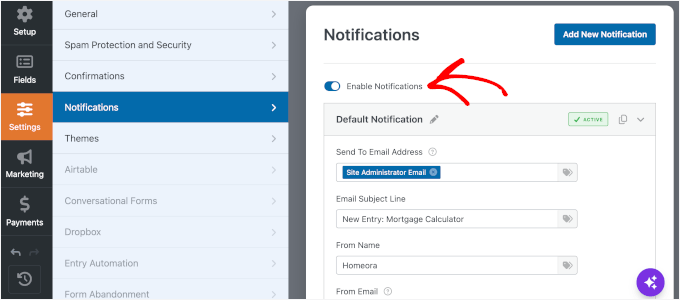
Next, let’s switch to the ‘Notifications’ tab and make sure notifications are enabled so you get an email every time someone completes the form.
WPForms has anti-spam protection on by default. And since these notifications matter, we’d recommend an SMTP service so they don’t land in spam. See our guide if WordPress isn’t sending emails.
Embed the Calculator
Now it’s time to embed your lead-capturing mortgage calculator.
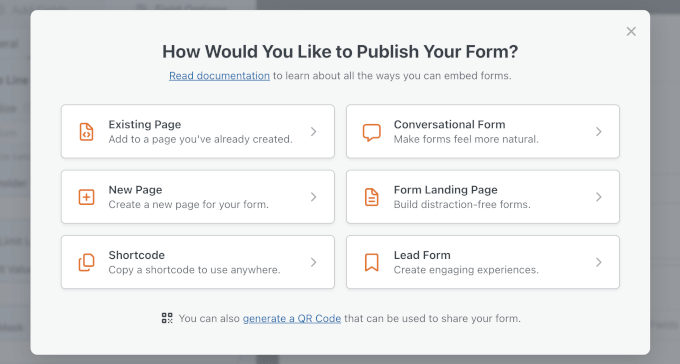
Click ‘Embed’ in the top menu. You can then add the form to an existing or new page, or copy the shortcode. If you choose ‘Existing Page,’ select the page where you want to embed your calculator in the next popup. This will take you to the page editor.
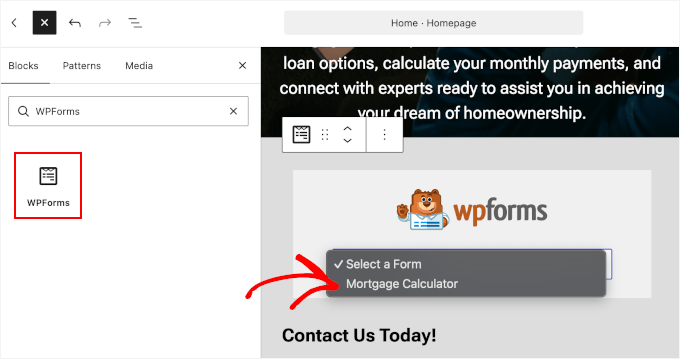
In the editor, click the ‘+’ button to add the WPForms block. After that, you can select your lead-capturing mortgage calculator from the dropdown.
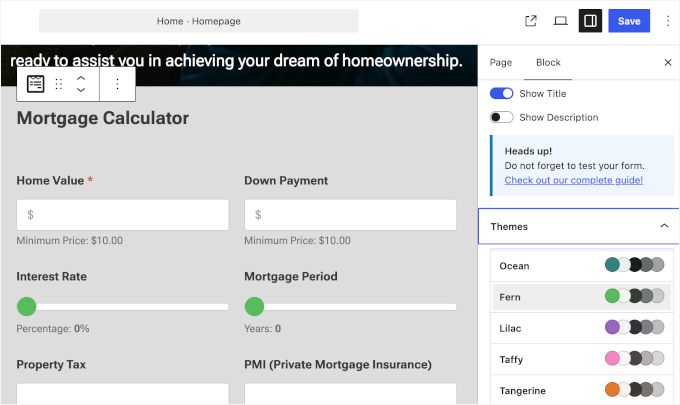
WordPress will then load your mortgage calculator in the editor. If you want, you can customize and style your form in the right panel. Click ‘Save’ or ‘Update’ when you’re done.
See our guide on adding a shortcode in WordPress if you prefer using a shortcode.
That’s it! You’ve successfully built a lead-capturing mortgage calculator:
Before you share the page, run a test calculation yourself and check that the entry appears under WPForms » Entries and that the notification email arrives.

If you want property tax, insurance, and PMI pre-built rather than added with Generate Formula, Formidable Forms’ Advanced Mortgage Calculator template includes them. See our Formidable Forms Calculators page for details.
FAQ: Add a Mortgage Calculator in WordPress
What elements are essential for a mortgage calculator?
A basic mortgage calculator needs the loan amount (home price or mortgage amount), interest rate (annual percentage), loan term (for example, 15 or 30 years), and a way to calculate and show the monthly payment. Some calculators also include fields for property tax, insurance, or HOA fees, but those are optional.
Can I change the currency from dollars?
Yes, all three methods can support other currencies, but the process is different. With the free embed, add a language code such as &lang=en-GB to the embed code. With Responsive Mortgage Calculator, you can set the currency under Settings » Resp Mortgage Calculator.
With WPForms, go to WPForms » Settings, open the ‘Payments’ tab, and choose your currency from the dropdown. Calculated fields use that setting.
Does this work with Elementor or other page builders?
Yes. You can paste the shortcode or embed code into your page builder’s Shortcode or HTML widget.
We hope this article helped you learn how to add a mortgage calculator in WordPress. Looking to make your real estate site even better? These handpicked resources can help:
- Best WordPress Real Estate Plugins
- Best Real Estate WordPress Themes for Realtors
- How to Create an IDX Real Estate Website Using WordPress
- The Ultimate WordPress Local SEO Guide to Boost Rankings
If you liked this article, then please subscribe to our YouTube Channel for WordPress video tutorials. You can also find us on Twitter and Facebook.


Jiří Vaněk
It is possible to change dollars to another currency in the calculator. E.g. CZK (Czech crown)?
WPBeginner Support
WPForms does allow you to change currencies, you would need to check with WPForms’ support for the current currencies available
Admin
Jiří Vaněk
Thank you for the advice. If possible, I will definitely contact support to find out how to switch the currency. Unfortunately, in the Czech Republic, no one would want to use a calculator with dollars. Thank you very much for your response and guidance.
Mrteesurez
Nice article to add a mortgage calculator bin WordPress. Having a mortgage calculator is really beneficial to a financial blogs and others related websites as visitors don’t have to visit a different site to get a mortgage calculation, that’s all in one experience for users make them stay more.
But I want to ask if custom CSS code can be applied to the calculator and make it more appealing ?
WPBeginner Support
It would depend on how you want it to look but you can apply CSS to these plugins.
Admin
Jiří Vaněk
I use WP Forms and when I make forms it allows you to set your own CSS. There is a pretty good guide on how to do this directly on the WP Forms website, where I also drew advice. Be sure to check it out and you’ll learn a lot about how to personalize forms for yourself.
Karina Le Roux
Hi there, I want to know if the currency in a different country will affect the mortgage calculator? I see in the screenshots only $, but I would like it to be South African Rand (R), will that be possible?
WPBeginner Support
Changing the currency should not cause an issue, if you reach out to Formidable Forms’ support they can assist you with any questions you may have about how to set it up.
Admin
Erick
Hi. Since we work with different banks and each of them have their own amount of interest rates, is it possible to have an option for the clients to select their preferred bank based on their interest rate or can I only use 1 specific predefined interest rate?
WPBeginner Support
You would want to reach out to the plugin’s support for the specifics and you could likely set that up how you are wanting.
Admin
Nitin
if i change WordPress theme so it can affect seo
WPBeginner Support
Depending on the theme it could have some effect, but it shouldn’t be a large effect
Admin